01 / CHECK
Add the project.
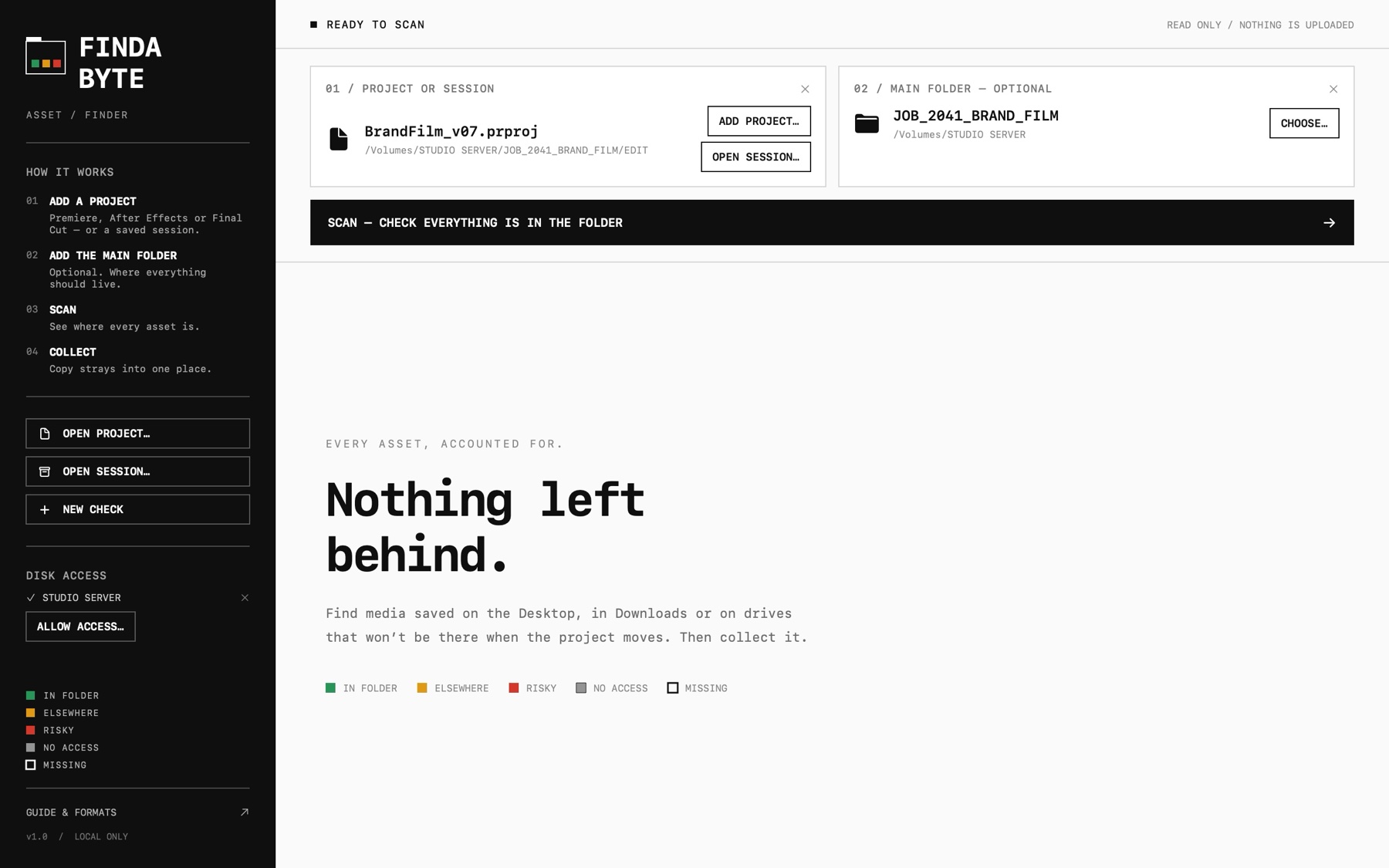
Drop in a Premiere Pro, After Effects or Final Cut Pro project, and the folder everything should live in. No folder? Findabyte works out the most likely one.
 FINDABYTE
EDIT / ASSETS / MAC
See where every asset in a Premiere Pro, After Effects or Final Cut Pro project lives. Find media saved on the Desktop, in Downloads or on drives that won’t be there when the project moves. Then collect it.
No account. No analytics. No upload.
Explore the workflow01 / CHECK
Drop in a Premiere Pro, After Effects or Final Cut Pro project, and the folder everything should live in. No folder? Findabyte works out the most likely one.
02 / SEE
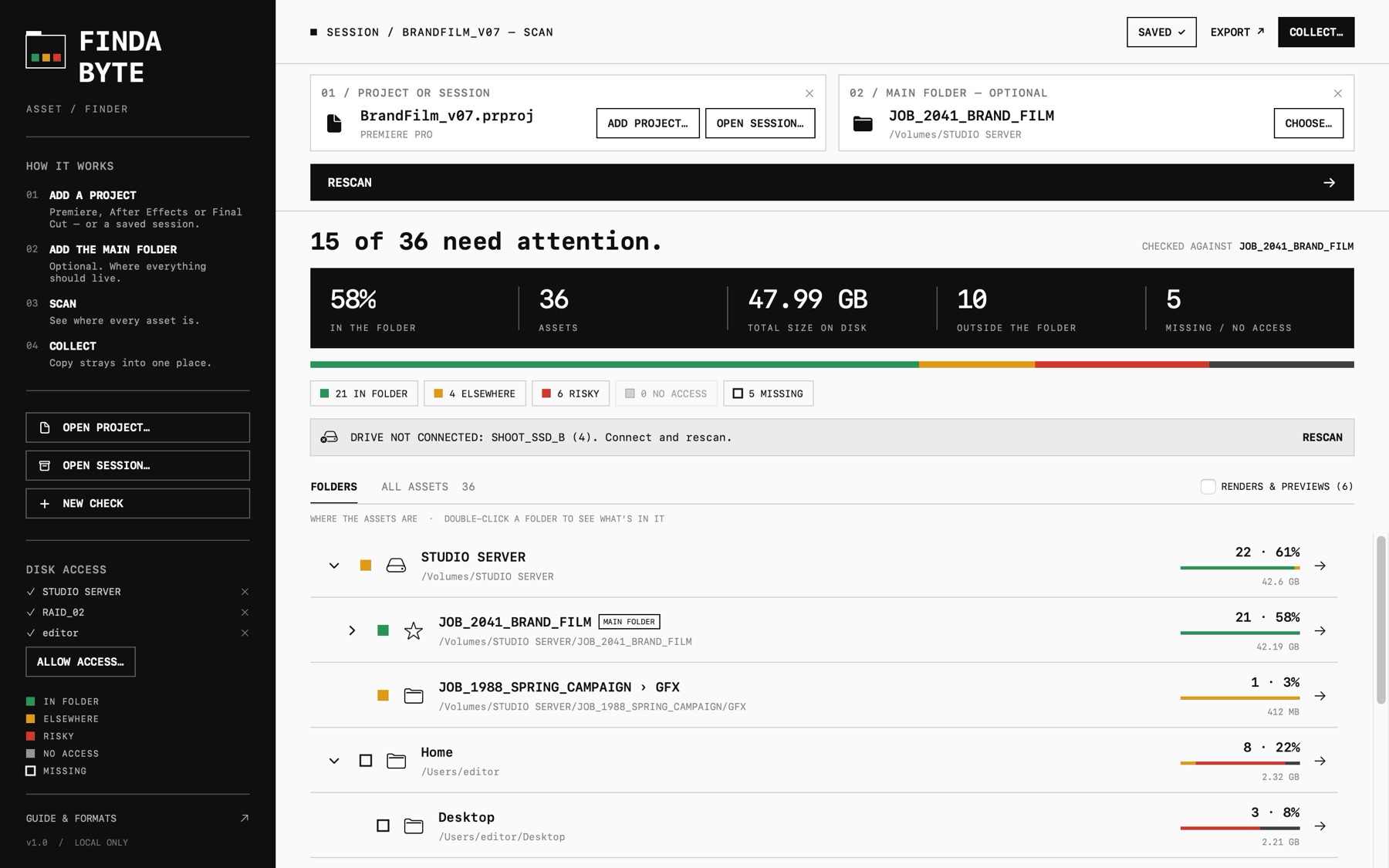
See the percentage of assets in the folder, by count and by size, every location they come from, and what needs attention.
03 / COLLECT
Copy the strays into one place. Nothing is overwritten or deleted, every copy is verified, and a report records where each file went.
Made for editors, motion designers and post-production teams moving jobs to a server, a shuttle drive or the cloud.
THE STATUSES
Inside the main folder.
On another drive, server or project folder, or in a cloud-synced folder. Probably deliberate, but it won’t travel with the project.
On the Desktop, in Downloads, loose in Documents, in the Trash, in iCloud Drive or in a temporary folder.
Not found. If it was on a drive that isn’t connected, Findabyte names the drive, for example “Drive not connected: SHOOT_SSD_B”.
macOS hasn’t let Findabyte look there yet. Allow access and rescan.
SEE WHERE EVERYTHING IS
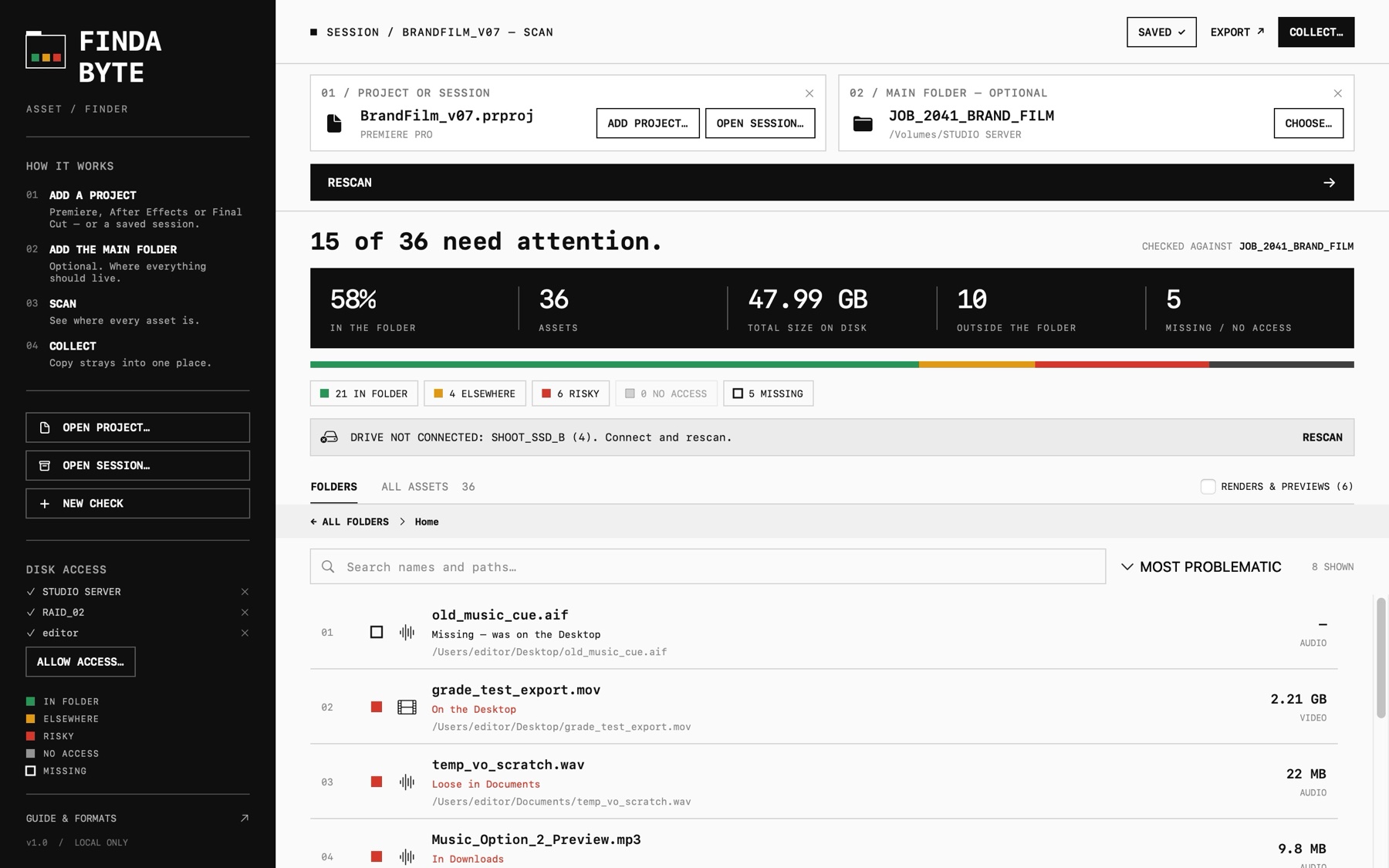
Every location, with counts, sizes and a status bar. Double-click a folder to see its assets.
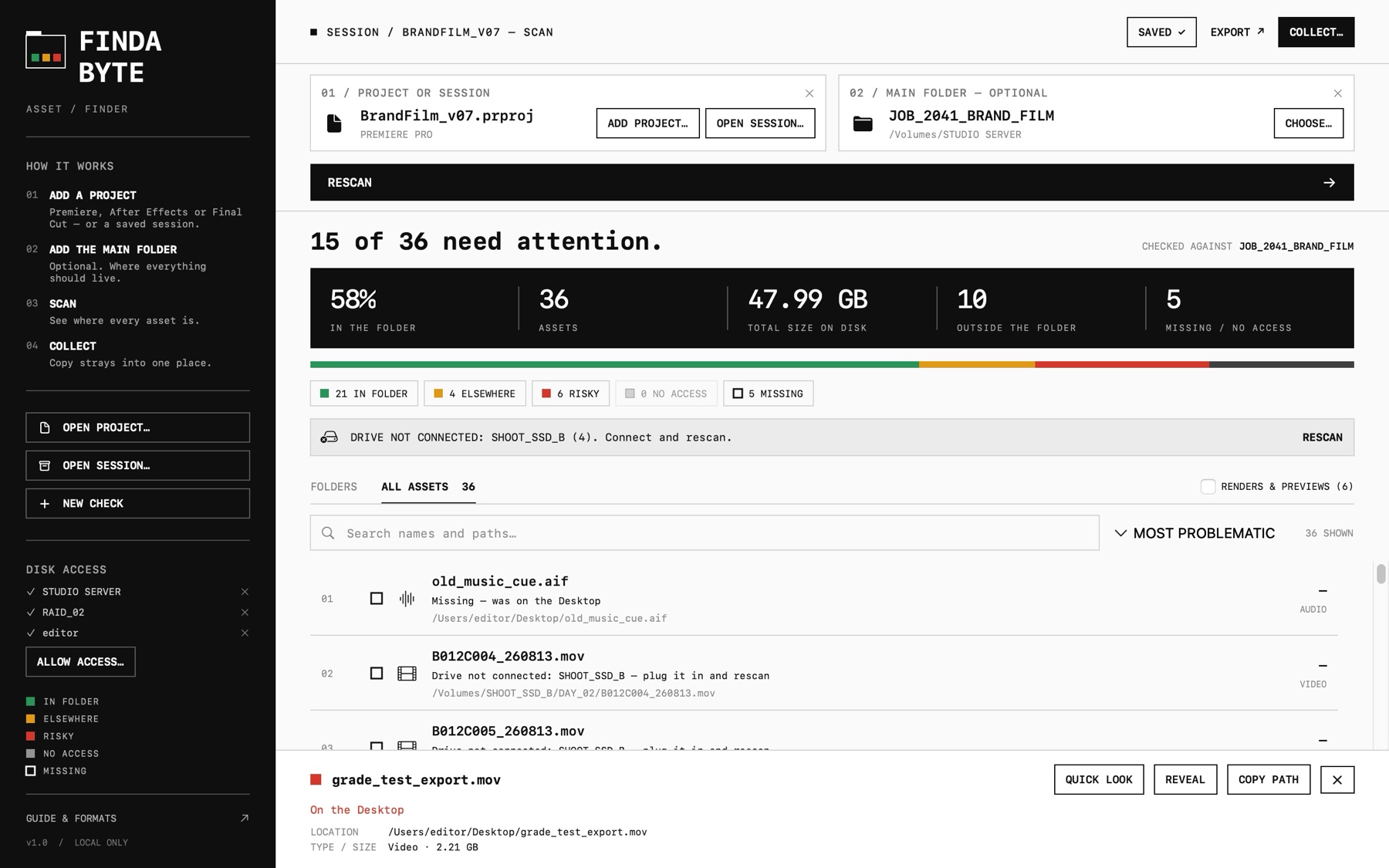
Everything, most problematic first. Sort by largest, name or location. Search names and paths, and filter by status.
Quick Look with the space bar, Reveal in Finder and Copy Path.
Right-click any folder and choose “Use as Main Folder” or “Collect Everything Into This Folder”.
Counted and collected frame by frame.
Render, preview and proxy files, such as Premiere’s Video Previews, are kept separate and hidden until you switch them on.
COLLECT THE STRAYS
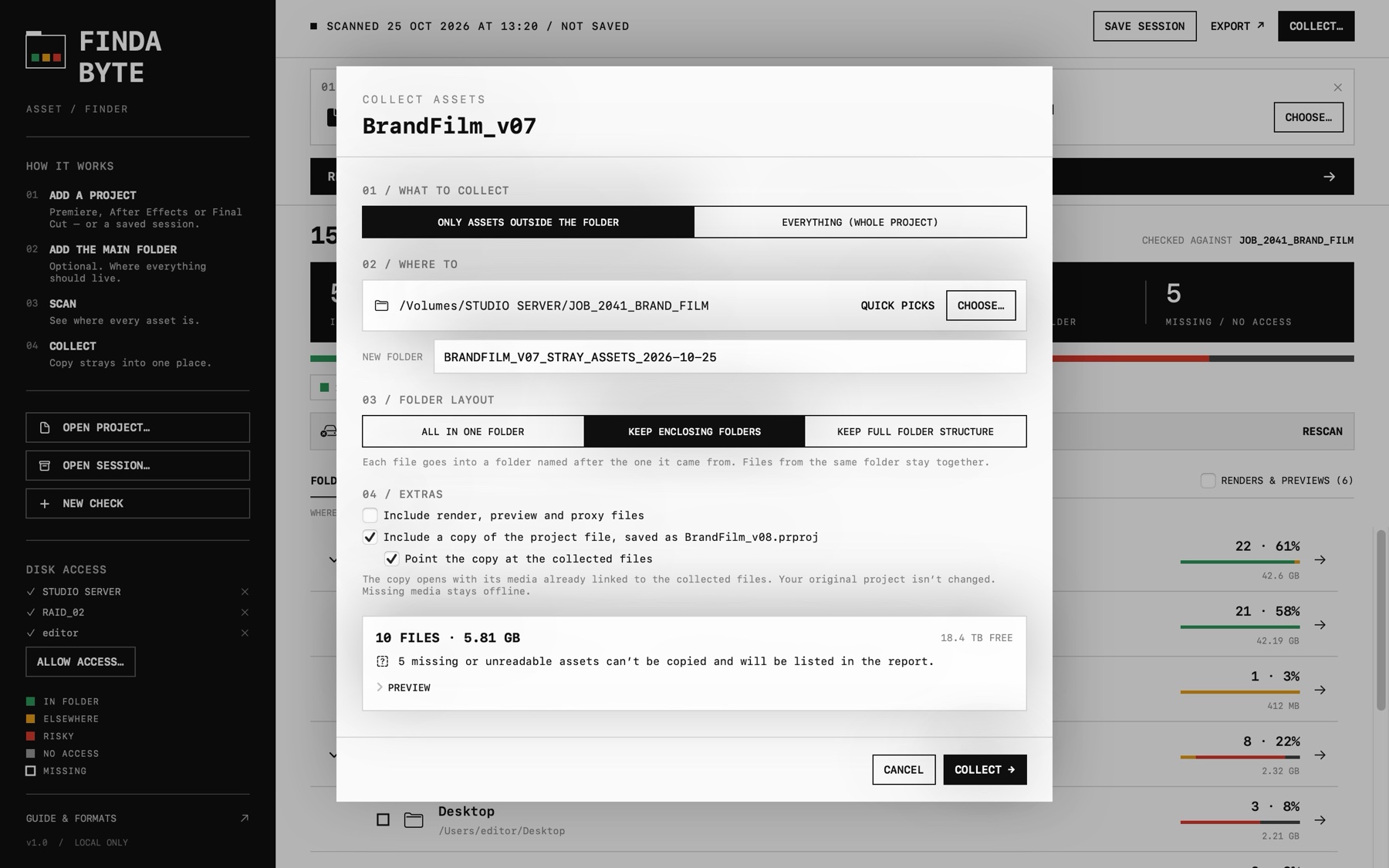
Only the assets outside the folder, or the whole project, to any destination.
All in one folder, keep each file’s enclosing folder, or keep the full folder structure.
Optionally include render files and a copy of the project file with its version number bumped, for example _v07 to _v08.
Collect never overwrites or deletes. Identical files already at the destination are skipped, free space is checked first and every copy is verified.
Each collect writes COLLECTION_REPORT.csv, listing where every file went.
The project copy points at the collected files, so it opens already connected. The original project is never changed.
Save a scan as a .findabyte session and reopen it later to review or collect. Export the full asset list as CSV.
.prproj
Scan, collect and a relinked project copy.
.aep .aepx
Scan and collect. Relink the copy in After Effects.
.fcpxml .fcpxmld
Scan and collect only for now. Relink in Final Cut.
.fcpbundle
Best effort. Exporting an FCPXML (File › Export XML) gives the complete list.
“Assets” means everything the project has imported: video, audio, music, stills, graphics (PSD, AI, PDF, EPS), nested projects and 3D files. It includes items not used on a timeline, the same as Premiere’s Project Manager and After Effects’ Collect Files.
No account, no analytics, no advertising and no third-party SDKs. Findabyte has no network access at all. It reads your project file and the names, sizes and locations of its media on your Mac, only copies files when you choose Collect, and never edits your original project.
macOS lets Findabyte see that files exist and how big they are, so the colours and percentages are always right. To preview or copy a file it needs your permission: drop a folder in, choose a destination, or use “Allow Access…” to grant a whole drive.
Read the guide